YouTube Premium student discount guide
How to apply for YouTube Premium Student, what students need, and what the offer is worth.
Who this offer is for
YouTube Premium Student is best for students who expect to use it for streaming, subscriptions, and student lifestyle savings and want to reduce the full yearly cost before paying standard pricing.
Requirements
- Confirm that the official YouTube Premium Student student offer is available in your country and at your student level.
- Prepare the exact verification material required by the provider before you start.
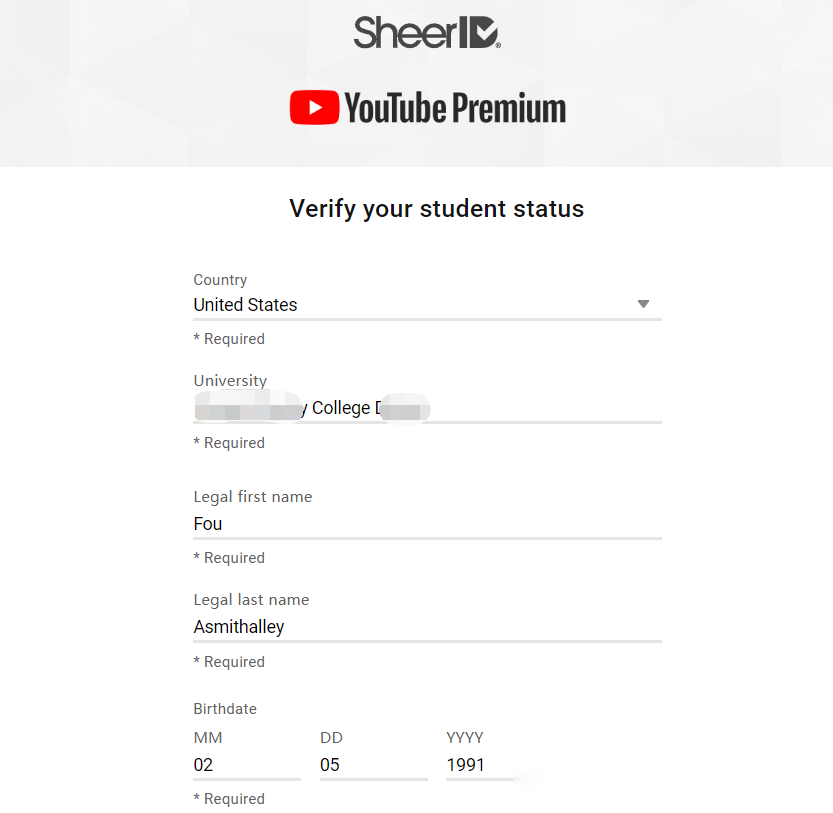
- Complete the SheerID flow with your legal student identity details.
- If instant approval fails, use the manual review option and upload clearer proof.
Step by step guide
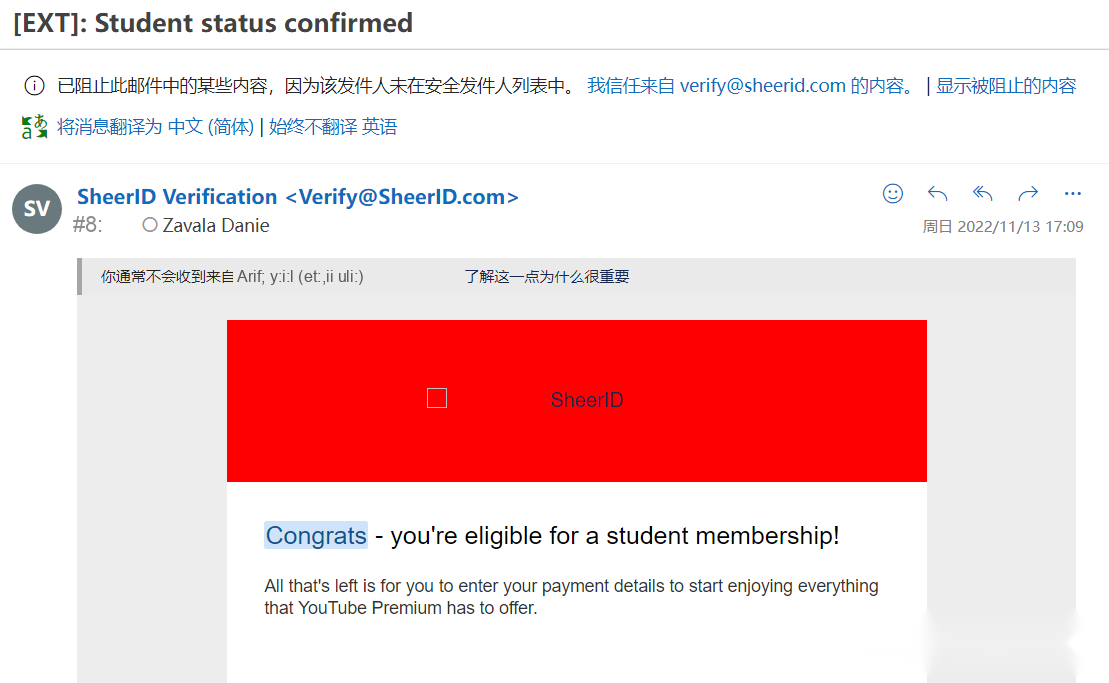
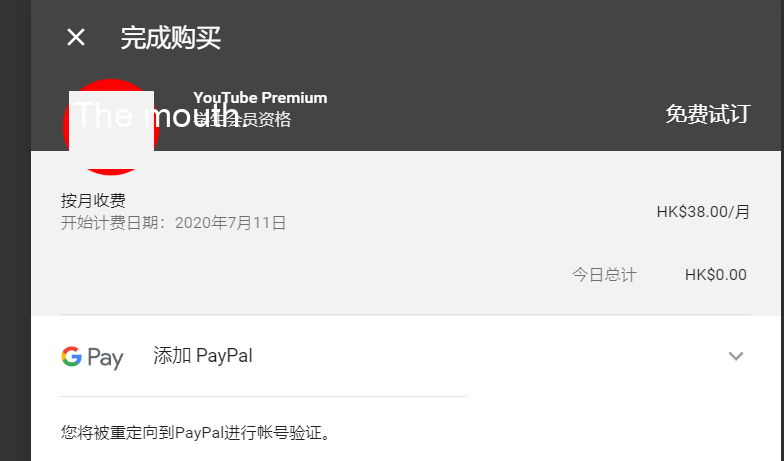
1. Open the YouTube Premium student page and start the official student membership flow. 2. Sign in with the Google account that will hold the YouTube Premium student subscription. 3. Complete the student verification step through the provider used by YouTube. 4. Review the student pricing terms, renewal details, and billing screen before continuing. 5. Confirm that YouTube Premium Student is active in your subscriptions page. ## Common rejection reasons
- The third-party verification service cannot match your school details instantly.
- The verification session expires before you upload proof or complete the confirmation step.
Value summary
The current estimated annual value of the YouTube Premium Student student offer is about 84 USD. The maximum documented yearly value on this page is about 168 USD when the full student benefit is used through the entire eligibility period.
Renewal strategy
Keep your school email active, save any approval confirmation emails, and review the official renewal terms before the benefit expires. Most student offers are easiest to keep when you renew before the current approval period ends.
Official links and notes
- Official provider page: https://www.youtube.com/premium/student
Application checklist
These visual checklist cards summarize the application flow. They are not official provider screenshots. Use the written guide and the official provider page for exact button names, page layout, and current eligibility wording.